

Diagnostic Links
Overview
When a clinician evaluates a patient, the process follows a pattern: gather information about the patient’s history and current symptoms, complete a physical exam, weigh the findings against a list of possible diagnoses, and arrive at the diagnosis or diagnoses for the visit. The next question: what to do about the problem. That may involve medications, lab tests, imaging, patient education or counseling. That is a lot of cognitive processing every 10-15 minutes in an outpatient setting, or while managing multiple patients at once in an inpatient setting.
Quippe supports this thought process with computable diagnostic links: structured relationships between a diagnosis and every clinical concept associated with it.
How Quippe’s Diagnostic Links Work
For any diagnosis, Quippe can return the full list of relevant symptoms, history, exam, tests, procedures, medications, imaging studies, and education or counseling topics, as well as other related diagnoses. This relationship works in both directions: given a diagnosis or problem, Quippe returns its related clinical concepts; given a clinical concept, Quippe returns the diagnoses it belongs to.
This list computable list of related concepts is useful at multiple points in a patient encounter. In the clinical workflow, diagnostic links support:
- Documentation and Completeness of the Note
- Identifying Relevant Clinical Concepts in a Patient Chart
- Guiderails for Ambient Listening
- Compliance and Regulation
Examples:
- A clinician needs a list of key concepts for progeria, a rare disease they haven’t seen since medical school.
- A medication appears in a patient’s chart and the clinician needs to know which diagnosis it’s tied to.
- Before a visit, a clinician wants to review the patient’s chart but skip the noise and surface only what is related to the patient’s primary problem.
Diagnostic Links Use Cases
Overview
Diagnostic links show up anywhere a diagnosis needs to be connected to the clinical concepts around it. That might be building a note in real time, reviewing a patient’s chart before a visit, checking an ambient summary for errors, or confirming a note meets clinical documentation requirements. The four use cases below walk through how the diagnostic links in Quippe’s Clinical Knowledge Graph support each of these points in the clinical workflow:
-
Documentation and Completeness — surfacing the relevant concepts for a diagnosis while writing a note, without a manual search for each concept or a template for every condition.
-
Identifying Relevant Concepts in a Patient Chart — filtering a crowded chart down to a longitudinal view of what’s related to the patient’s problem.
-
Guiderails for Ambient Listening — validating that an AI-generated note’s findings actually belong to its stated diagnoses, and flagging what doesn’t.
-
Compliance and Regulation — checking a note against documentation requirements and suggesting what’s missing.
Assisting with Documentation and Completeness
Consider an outpatient visit in which a patient reports shortness of breath, cough, wheezing, weakness, and a history of smoking. You may already suspect a respiratory condition, such as bronchitis or COPD, and need a focused list of related clinical concepts to support documentation. Quippe uses the data points associated with a specific diagnosis to present relevant concepts describing the patient’s current condition — no need to search manually or create a separate template for every diagnosis.
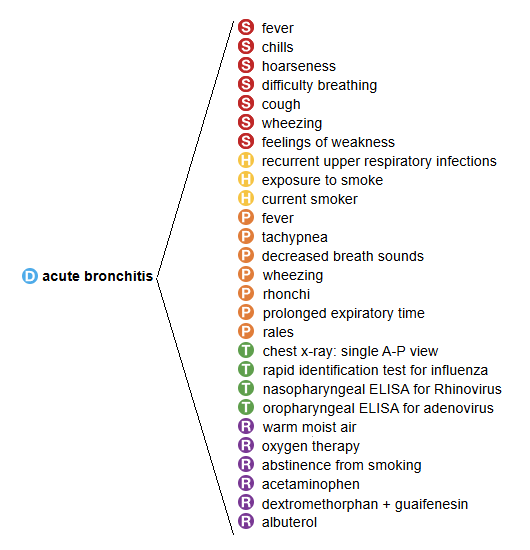
Quippe UI
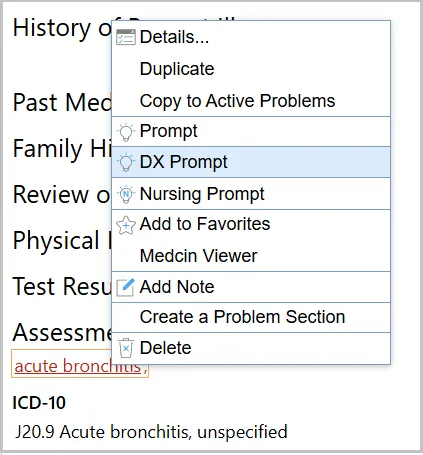
In the Quippe UI, add any diagnosis to the note via the search. On the entered finding, right click and select DX Prompt.
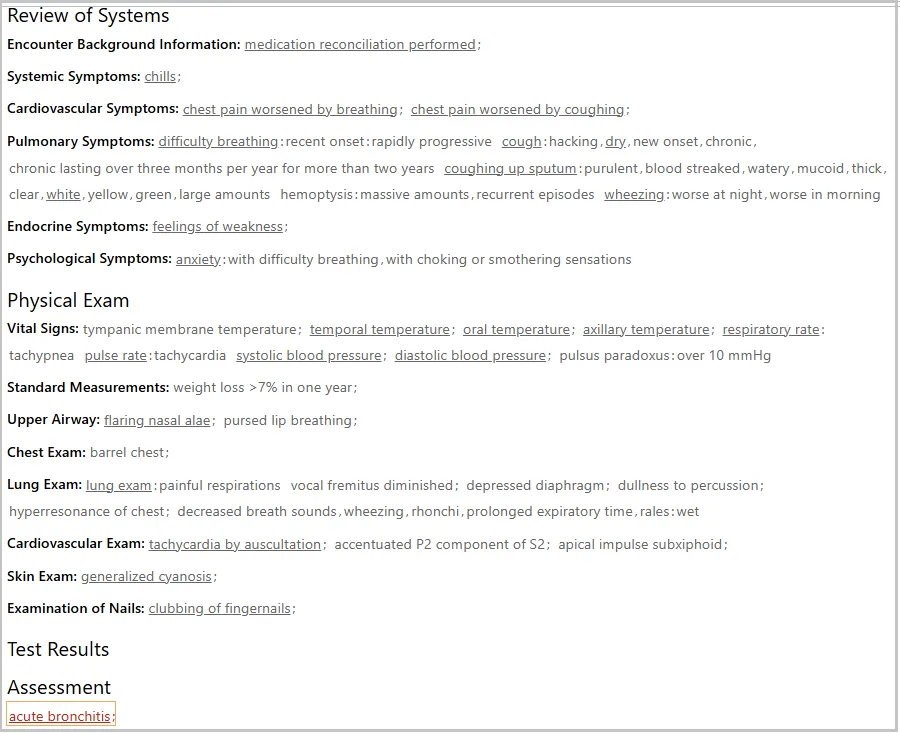
The concepts related to the selected diagnosis are added to the note, ready for documentation.
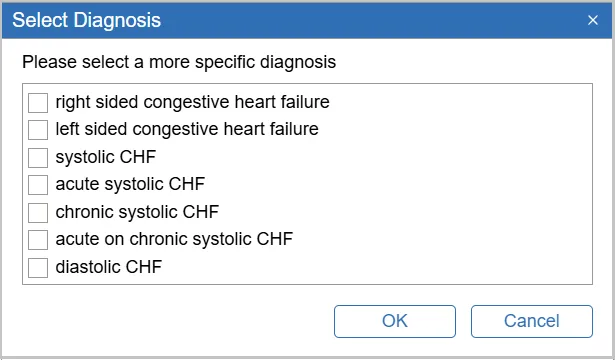
 In cases where a generic diagnosis is selected, the returned list may be only diagnoses (term type 6), meaning the initial diagnosis is too broad to be helpful. In these cases, you will be asked to select a more specific diagnosis to present a more useable list of findings.
Example: Congestive heart failure (MEDCIN ID 33268) is too broad and a more specific diagnosis is needed in order to add related concepts to the note.
Quippe API
The /Quippe/NoteBuilder/QuickPrompt API returns the concepts related to a diagnosis using the associated medcinId along with any optional parameters.
Documentation: GET /Quippe/NoteBuilder/QuickPrompt
Parameters:
MedcinId: 32890- This is the MEDCIN ID for acute bronchitis
ListSize: small
Sample Results:
The code snippet below shows a sample of the output.
Identifying Relevant Clinical Concepts in a Patient Chart
With the onslaught of data in a patient’s chart, it is difficult and time-consuming for a clinician to find relevant information. The patient is here for a diabetes follow-up. Quickly identifying the current state of the disease means knowing the most recent A1C or glucose level, and which medications the patient is taking.
The clinician requires a quick snapshot of the items relevant to diabetes and does not need to worry about the cold the patient had last year. Using Quippe’s diagnostic links, the clinician can filter the chart to see just the clinical concepts related to the patient’s diabetes.
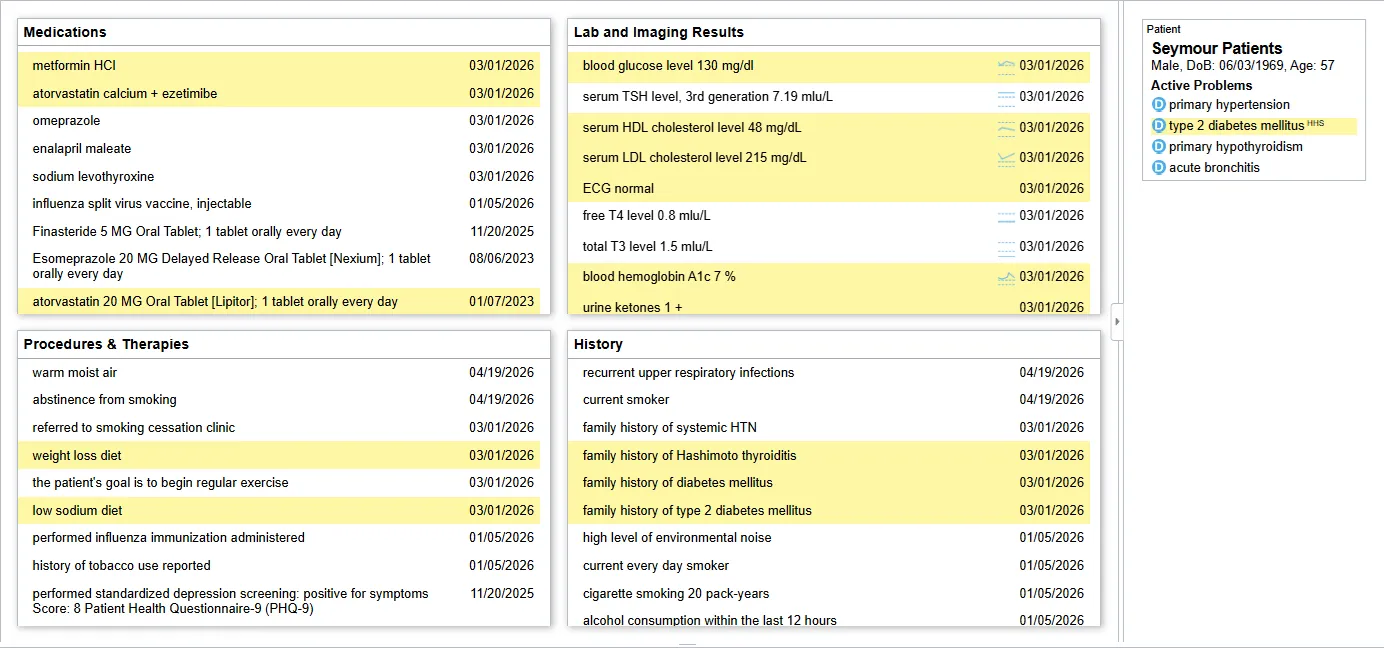
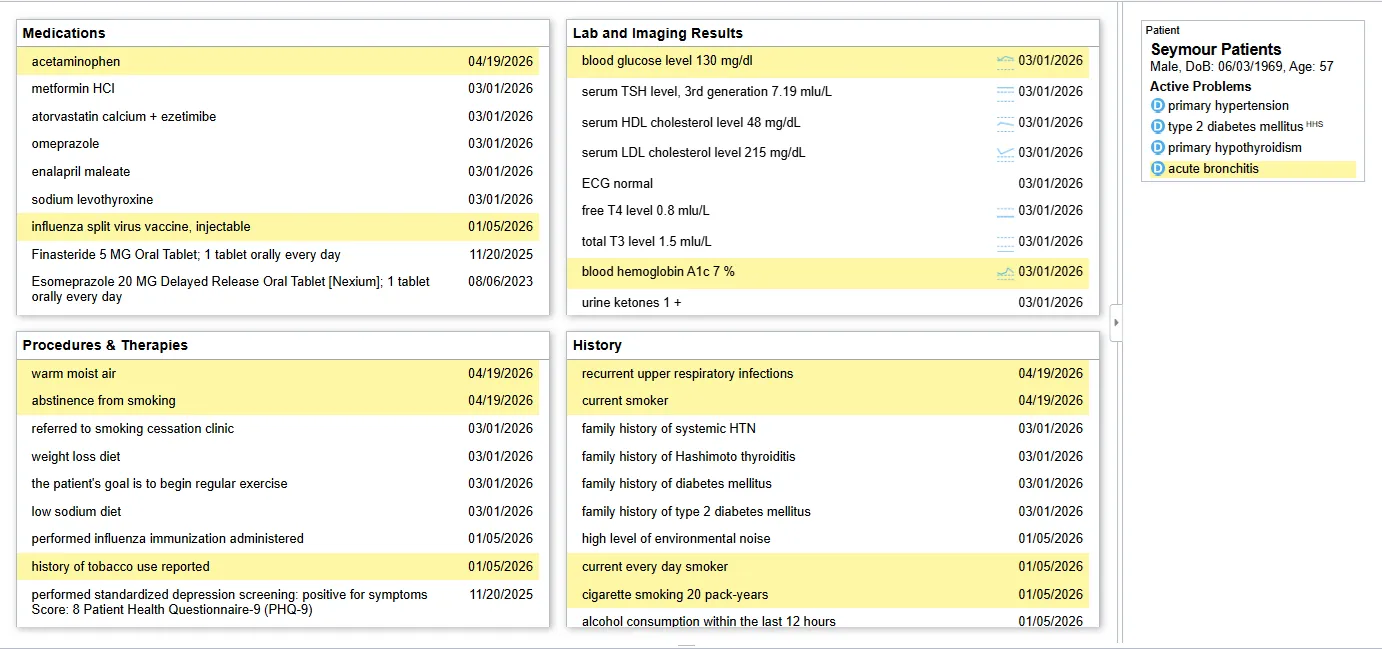
Quippe UI
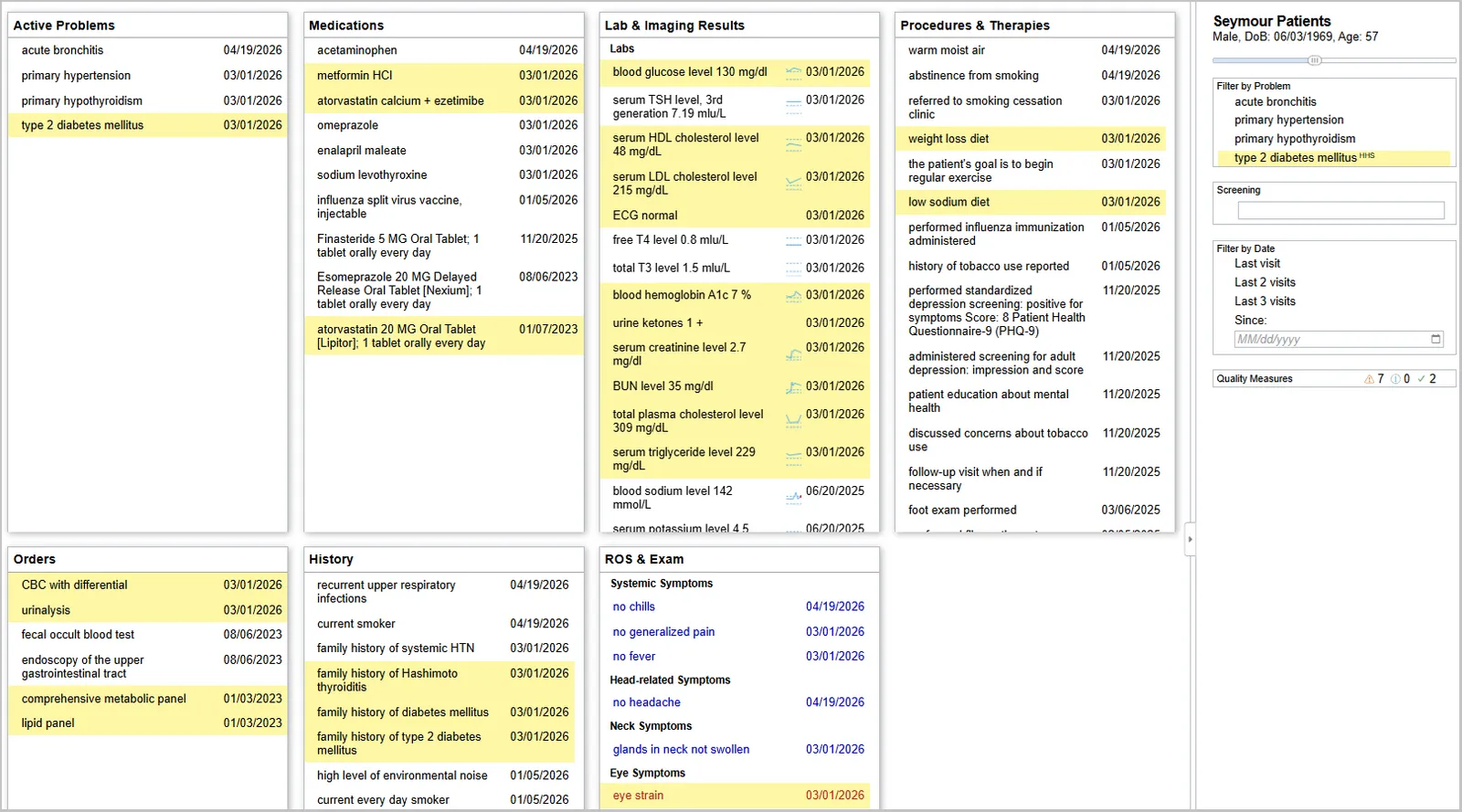
To try this yourself, open Clinical Lens and select Seymour Patients - he has a more complete sample chart. Clinical Lens provides a summary of the patient’s chart. The first tab includes the most recent instance of Seymour’s active problems. To view the findings related to a specific diagnosis or problem, simply click on one in the Filter by Problem task pane on the right side of the window. The related findings will be highlighted in yellow.
Example view of diabetes mellitus type 2 (MEDCIN ID 30480) for Seymour Patients:
Quippe APIs
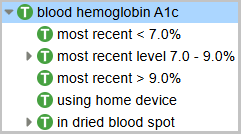
There are multiple steps in this process. One to retrieve the list of concepts related to the selected diagnosis and their node keys, and one to identify findings in the chart that have similar node keys. A node key defines a concept’s place in the MEDCIN hierarchy. With the node key, we can identify (and then highlight) all the findings that start with that same node key.
For example, blood hemoglobin A1C (MEDCIN ID 12736) is related to type 2 diabetes. Its node key is -DDD-P-E-E. When looking through the patient’s chart to find concepts related to diabetes type 2, we will highlight all concepts that start with this node key. This would include not only blood hemoglobin A1C, but also its subordinate/child concepts. This ensures that all A1C concepts are identified.
Step 1: Identify the node keys of the concepts related to the selected disease
In this use case, we want to identify findings related to a single diagnosis, or sourceId, of diabetes mellitus, type 2 using its MEDCIN ID 30480. Use the /Quippe/ClinicalLens/Prompt API to return a list of concept node keys related to a MEDCIN sourceId.
Documentation: GET /Quippe/ClinicalLens/Prompt
Parameters:
SourceId: 30480- This is the MEDCIN ID for diabetes mellitus type 2
SourceType: termListSize: medListSmall
Sample Results:
Partial list of the associated node keys for this SourceId.
Step 2: Gather node keys of the findings in the patient’s chart
The /Quippe/NoteBuilder/ResolveTerms API returns the nodeKey for each MEDCIN ID.
Documentation: GET /Quippe/NoteBuilder/ResolveTerms
Parameters:
MedcinIds: pass in all the MEDCIN IDs from the patient’s chart.
Sample Results:
Partial list of the findings in the patient chart. One of the properties provided for each medcinId is the nodeKey.
Step 3: Compare the node keys in the patient chart with the node keys from the findings related to type 2 diabetes
There is no specific Quippe API to accomplish this simple comparison. If a chart finding node key starts with any of the node keys in the diagnosis list, then it is related to the diagnosis. In JavaScript, this might looks something like:
Guiderails for Ambient Listening
The trend in EHR documentation now is to use ambient listening to capture the transcript of a conversation between a clinician and a patient and then translate it to a text clinical note. The unknown in this equation is the accuracy - did the tool capture the conversation and subsequent clinical concepts correctly? Did it correctly distinguish a family history of breast cancer from the patient’s own history?
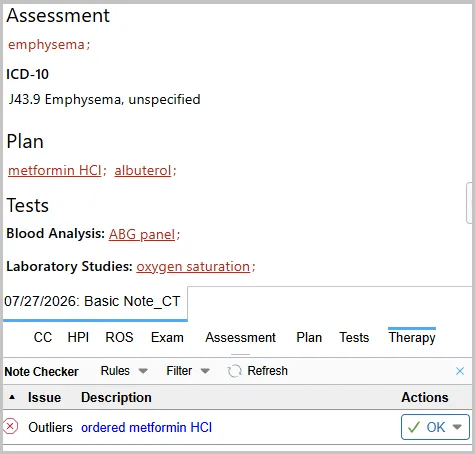
With the Quippe APIs, that clinical text note can be translated into structured MEDCIN findings. Once you have the structured clinical data points, the diagnostic links can be used to validate the accuracy of the note. Say the note includes diabetes and acute bronchitis as the diagnoses. The links can be used to verify that the other clinical data points in the note are associated with one of the diagnoses and alert the clinician of the outliers. If biopsy showed Bowen’s disease turned up in the note because the patient’s last name is Bowen, the clinician would be alerted and could easily remove the finding.
Quippe UI
Quippe APIs
The /Quippe/ChartReview/ScoreNote API identifies which findings in the note are related to a documented diagnosis finding.
Documentation: POST /Quippe/ChartReview/ScoreNote
Parameters:
Example XML Input:
Sample Results:
In this example, emphysema is the documented diagnosis. The related entries are Q1 (emphysema), Q2 (albuterol), Q3 (ABG panel), and Q4 (oxygen saturation), while Q5 (fever) and Q6 (metformin) are not related to emphysema.
Compliance and Regulation
Diagnostic links also help satisfy documentation compliance requirements. For example, E&M or HCC claims require that the note contain an appropriate history and physical. What does that mean and how does a clinician know if their note is compliant?
Quippe uses the diagnostic links along with coding guidelines to provide the clinician with a level of confidence that their note is compliant, at the point of care. If it is not, the diagnostic links can suggest related clinical concepts to add to the note to ensure completeness. This group of APIs is the Documentation Scoring capability.
Quippe UI
The easiest way to see this in action is to add a diagnosis and some documentation to a note. The Documentation Scoring task pane is visible by default. If it is not visible, click the Settings icon in the bottom right of the window and select Documentation Scoring.
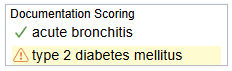
Once a diagnosis has been entered into the note (marked red, positive), it is scored and displayed in the task pane.
- Score 1 - Hazard sign with exclamation mark: The note does not support the diagnosis.
- Score 2 - Question mark: The note may or may not support the diagnosis.
- Score 3 - Green checkmark: The note is not incomplete.
See Documentation Scoring to learn more.
Quippe APIs
The /Quippe/ChartReview/ScoreNote API identifies findings in a note related to a documented diagnosis medcinId, and returns a score indicating whether or not those findings satisfy the documentation scoring algorithm.
Documentation: POST /Quippe/ChartReview/ScoreNote
Parameters:
Example XML Input with findings from a note:
Sample Results:
The score of 2 indicates the related concepts, or targetIds, in the documentation may or may not support the diagnosis of type 2 diabetes mellitus.
FAQ
What are diagnostic links in Quippe?
Diagnostic links are the evidence-based, expert curated relationships in the Quippe Clinical Knowledge Graph that connect a diagnosis to every clinical concept associated with it - including symptoms, history, physical exam findings, tests, procedures, medications, imaging studies, and education or counseling topics, as well as other related diagnoses.
How are diagnostic links used in clinical workflow?
Quippe’s computable diagnostic links support documentation (surfacing relevant concepts while writing a note), chart review (filtering a patient’s chart to find what is relevant today), ambient listening validation (flagging note findings that don’t match the stated diagnosis), and compliance (checking whether a note meets documentation requirements).
Which terminology do diagnostic links use, and how does that affect billing?
Diagnostic links are built on the MEDCIN clinical terminology, which maps to reference terminologies including ICD-10, CPT, LOINC, RxNorm,SNOMED CT, and DSM-5, so concepts identified through diagnostic links are already aligned to the codes needed for billing, reporting, and compliance.
Resources
Help Library > End Users:
API Documentation: